
Arvin® - AI Logo Maker
IdeaLabs.Art & Design
4.81.89K Reviews
- Version
- 2.6.4
- Installs
- 5.00M
- Age Rating
- Teen
Screenshots
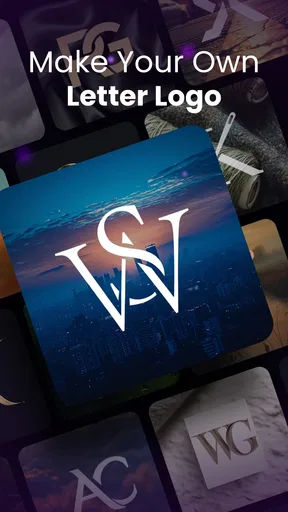
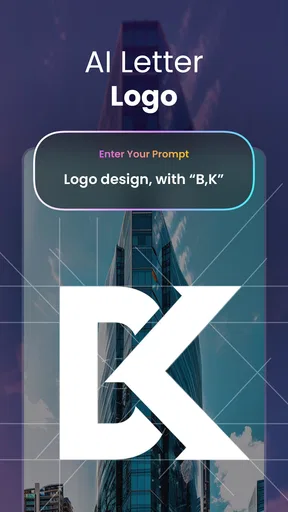
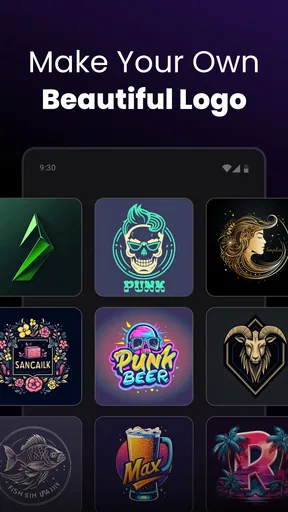
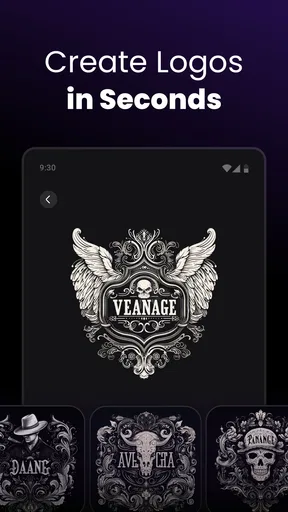
Our Review of Arvin® - AI Logo Maker
 Analysis by Appyee
When people get stuck making a logo, it is often not because they lack ideas; it is because they cannot turn a vague idea into a clear visual direction. I find that Arvin® - AI Logo Maker is most useful as a starting point: it gives you designs to react to, then lets you adjust the parts that feel wrong. That is a more approachable way into logo design than opening a blank canvas, though it still takes some judgement to make the result feel personal.
Where the first attempt can go off course
The initial choices matter. A business name and industry give the generator a prompt, but those broad labels cannot explain everything that makes a business distinct. A neighbourhood bakery, for example, may want a handmade feel rather than the polished look people often associate with food brands. If the first batch seems too familiar, I would treat it as a rough direction, not a verdict on what the app can produce.
Before generating, decide on a few words that describe the character you want: calm, playful, practical, premium, or something else. Then compare the suggested designs against those words instead of choosing the one that simply looks most finished. This small step helps me avoid picking a logo that is attractive on screen but wrong for the business.
Simple checks before spending time on a design
Arvin is a free art-and-design app from IdeaLabs, with in-app purchases ranging from $0.99 to $99.99 per item. I would check the available purchase options before getting attached to a particular workflow, especially if you are trying to keep a project within a strict budget. The app is rated for Teen audiences, and its current version is 2.4.1; it requires Android 7.0 or later on Android devices.
It has a 4.6 average from around 74,000 ratings and over one million installs, which suggests that many people have tried it, but those figures do not tell me whether a particular design will suit my needs. I would install it with a clear, small task in mind—such as exploring a logo for a side project—rather than assuming the first result will be ready for every use.
Getting a useful result from the workflow
When the suggestions feel generic, I would change one design choice at a time. Try a different font before changing the colour and icon together; otherwise, it becomes difficult to tell which adjustment improved the design. Once a direction starts to work, save or note the elements you like so you can compare alternatives without relying on memory.
The preview options are particularly handy for checking whether a design holds together in different contexts. A logo that looks appealing at a large size can become hard to read when it is reduced to an app icon. I would use those previews as a practical test, not just as a presentation flourish: check the name, shape, and contrast at each scale before settling on a version.
When a design problem may be elsewhere
If the app feels difficult to use, I would first separate a design problem from a technical one. A crowded brief can lead to crowded suggestions, and a logo with too many competing ideas may need a simpler brief rather than more editing. If a screen is slow or an action does not respond, basic checks such as closing and reopening the app, confirming the device has a working connection when needed, and making sure the app is up to date are sensible first steps. I would avoid making several changes at once, since that can make it harder to see what helped.
Arvin is a logo-making tool, not a substitute for deciding how a brand should look. If you need a distinctive identity for a large launch, a designer can ask deeper questions, explore custom typography, and develop a coherent system beyond one mark. If you only need a quick concept for a personal project or a small business idea, an app can be a more accessible place to experiment.
First Impressions
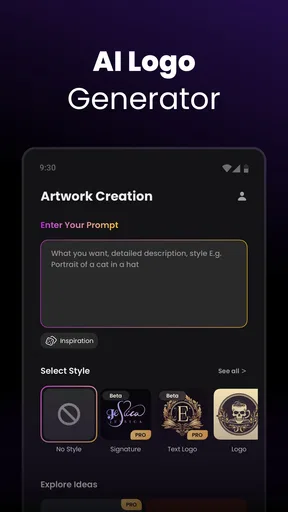
When I first opened Arvin® - AI Logo Maker, I was greeted by a sleek and intuitive interface. It’s one of those apps that feels like it just "gets" what you need, even if you’re not entirely sure yourself. The layout is clean, and everything is pretty straightforward, which is a big win for those of us who aren’t exactly tech wizards.
The app is available for both Android and iOS, so whether you’re team Android or an iPhone aficionado, you’re covered. It’s super user-friendly right from the get-go, which makes diving into logo creation a breeze.
The Creative Process
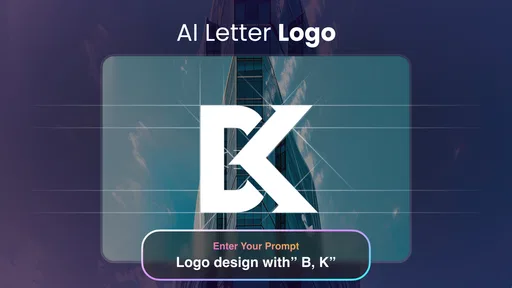
Now, the heart of any logo maker is, of course, the design process. What I love about Arvin is how it uses AI to simplify this. You start by entering your business name and selecting your industry, and then boom—the AI kicks in and generates a variety of logo designs tailored just for you. It feels like magic!
You’re not just stuck with the AI’s first attempt, though. You can tweak colors, fonts, and elements to your heart’s content. The level of customization is impressive. Whether you’re going for something minimalist or looking to cram in as much personality as possible, Arvin has you covered.
Features That Stand Out
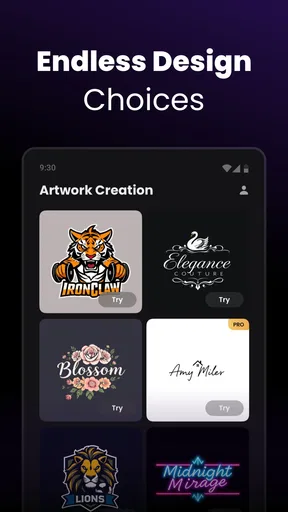
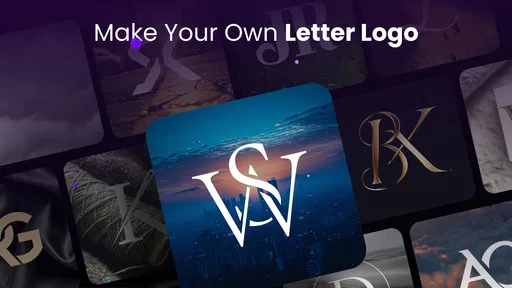
Let’s talk features, because Arvin has quite a few that caught my attention. First off, the app offers a huge library of icons and fonts. This is great because it means you’re not just limited to a handful of generic options. You can really dig in and find something that fits your brand.
Another neat feature is the ability to preview your logo in different formats. You can see how it looks on business cards, websites, and even as an app icon. This kind of foresight is invaluable because it helps ensure your logo looks great no matter where it’s displayed.
Room for Improvement?
No app is perfect, and while Arvin does a lot right, there are a couple of areas where it could level up. For example, while the AI suggestions are generally spot-on, sometimes they can feel a bit too safe or generic. A bit more variety in the initial suggestions could make the experience even richer.
Also, while the app is mostly intuitive, there were a couple of moments where I wished there was a bit more guidance. A tutorial or some tips for beginners could go a long way in making the app even more accessible.
Picking the right tool for the job
Compared with a general-purpose drawing or layout app, Arvin gets you to logo concepts faster because you begin with a business name and industry rather than an empty page. That speed is valuable when you need a direction for a small online shop, a club, or a new service and want to compare several visual approaches. A blank-canvas editor is a better fit if you already have a precise design in mind and want control over every shape from the beginning.
There is also a middle ground between an AI-made concept and hiring a designer. I would use Arvin to explore mood and basic composition, then share the strongest option with a designer if the identity needs to be distinctive, scalable, or part of a larger brand system. This keeps the app useful without expecting it to do work it was not designed to replace.
A realistic way to use it during a busy day
Imagine you are setting up a weekend craft stall and need a temporary mark for a sign and social profile. I would enter the stall name and relevant industry, look through the generated options, and shortlist a few that remain legible when previewed smaller. Then I would adjust a single font or colour choice at a time and ask someone who has not watched me design it to read the name at a glance. That quick outside check can catch a practical problem that is easy to miss when you have been staring at the screen.
For a more established business, I would use the same process as a brainstorming exercise rather than treating the result as a finished identity. Keep the brief focused, compare the options against the audience you want to reach, and resist adding decorative elements just because they are available. A logo has to work repeatedly in ordinary contexts; novelty by itself is not a reason to keep a detail.
Small decisions that improve the result
One useful trade-off is to favour clarity over cleverness. If an icon and the business name both communicate the same thing, test whether one can be simplified or removed. The icon and font library gives you room to explore, but more choice can also make it tempting to keep browsing instead of deciding. I find it helpful to set a short list of criteria before exploring: readability, tone, and whether the mark still makes sense without a colour effect.
Another practical check is to view the design against both light and dark backgrounds if the preview allows it, and to consider whether it will still be recognisable without relying on subtle colour differences. This is not a promise that every export or placement will behave identically; it is a way to judge the underlying design. If the logo only works in one particular presentation, I would keep refining it rather than assume the preview has solved every real-world use.
People often wonder whether they need design experience to get started. I do not think they do: the business-name and industry prompts provide a simple entry point, and the editing options make experimentation approachable. But beginners should expect to make choices, not just accept an automatic answer. If you are unsure, make two or three deliberately different versions and compare them after a short break; distance can make it easier to spot which one communicates the right mood.
Knowing when to stop troubleshooting
If a particular result disappoints you, first check whether the problem is with the brief, the design, or the app itself. A vague business description can produce broad ideas; a crowded layout may need fewer elements; and a device or connection issue can interrupt an otherwise straightforward session. Try a simple restart and make one change at a time. If the same technical problem continues, it may be more productive to use another design method for that task than to keep repeating the same steps.
For questions about what a purchase includes or whether a particular output suits a commercial project, I would check the current in-app purchase details and the terms presented in the app before committing. The free starting point makes it easy to explore, but the range of optional purchases means I would not assume every tool or deliverable is included at no cost. That is especially important if you are creating a logo for a business rather than experimenting for fun.
The Bottom Line
At the end of the day, Arvin® - AI Logo Maker is a powerful tool for anyone looking to create a logo without a hitch. It’s intuitive, versatile, and packed with features that make the design process not just easy, but genuinely fun. Whether you’re starting a new business or just want to refresh your brand’s look, Arvin is definitely worth a try.
If you’re like me and love a tool that makes you feel like a design pro, this app should be on your radar. It’s like having a designer in your pocket, ready to whip up something amazing whenever inspiration strikes. So, why not give it a whirl? You might just find that perfect logo you’ve been dreaming of.
My recommendation is to treat it as a fast, approachable concept maker: especially useful when you have a name and a rough sense of style, but not yet a visual direction. It is less suited to anyone who needs precise, professional brand production or who wants complete control from the first sketch. Used with a clear brief and a critical eye, it can help you move from “I need a logo” to a few concrete ideas worth developing.
Verdict
Strengths of Arvin® - AI Logo Maker
- Easy to use with intuitive design.
- Wide range of logo templates available.
- Quick export in multiple formats.
- Customizable color and font options.
- Affordable pricing for premium features.
Limitations of Arvin® - AI Logo Maker
- Limited free design options.
- Occasional app lag on older devices.
- Requires internet connection to save.
- In-app ads can be distracting.
- Some features locked behind paywall.
Other Releases by IdeaLabs.
View All
YayTalk: Speak & Learn English
Education4.9

Beautify: AI Hairstyle Try On
Beauty3.7
Similar Picks in This Category
View All
Canva: AI Photo & Video Editor
Canva4.8

PENUP – Drawing-sharing SNS
Samsung Electronics Co., Ltd.4.5

Crafto
Kutumb App4.6

Sketchbook
Sketchbook4.1

ibis Paint X
ibis inc.4.5

Adobe Express: AI Photo, Video
Adobe4.6
Frequently Asked Questions
What platforms is Arvin® - AI Logo Maker available on?
Arvin® - AI Logo Maker is available for both Android and iOS platforms, providing users with flexibility regardless of their device preference. You can download it from the Google Play Store for Android or the Apple App Store for iOS. Ensure your device meets the minimum requirements for optimal performance.
Does Arvin® - AI Logo Maker require an internet connection to function?
While Arvin® - AI Logo Maker does require an internet connection for initial setup and to access certain features like online templates and cloud storage, you can perform basic logo editing tasks offline. However, to take full advantage of its capabilities, a stable internet connection is recommended.
Is there a free version of Arvin® - AI Logo Maker, and what features does it include?
Yes, Arvin® offers a free version that provides access to basic logo creation tools and a limited number of templates. This is suitable for users who need simple design options. For advanced features, such as premium templates and AI-driven customization, a subscription to the Pro version is required.
How user-friendly is Arvin® - AI Logo Maker for beginners?
Arvin® - AI Logo Maker is designed with ease of use in mind, featuring an intuitive interface and guided tutorials. Beginners will find the drag-and-drop functionality straightforward, while AI suggestions assist in creating professional-looking logos without prior design experience. The app's learning curve is gentle, making it accessible for all skill levels.
Can I export logos created with Arvin® - AI Logo Maker in different formats?
Yes, Arvin® - AI Logo Maker allows users to export their logo designs in various formats, including PNG, JPG, and SVG. This flexibility ensures compatibility with different platforms and media, allowing users to use their logos in digital and print materials with ease. Export quality can be adjusted based on your needs.
